Managing Users
The Users section is the central hub for all user accounts on the platform.
User List
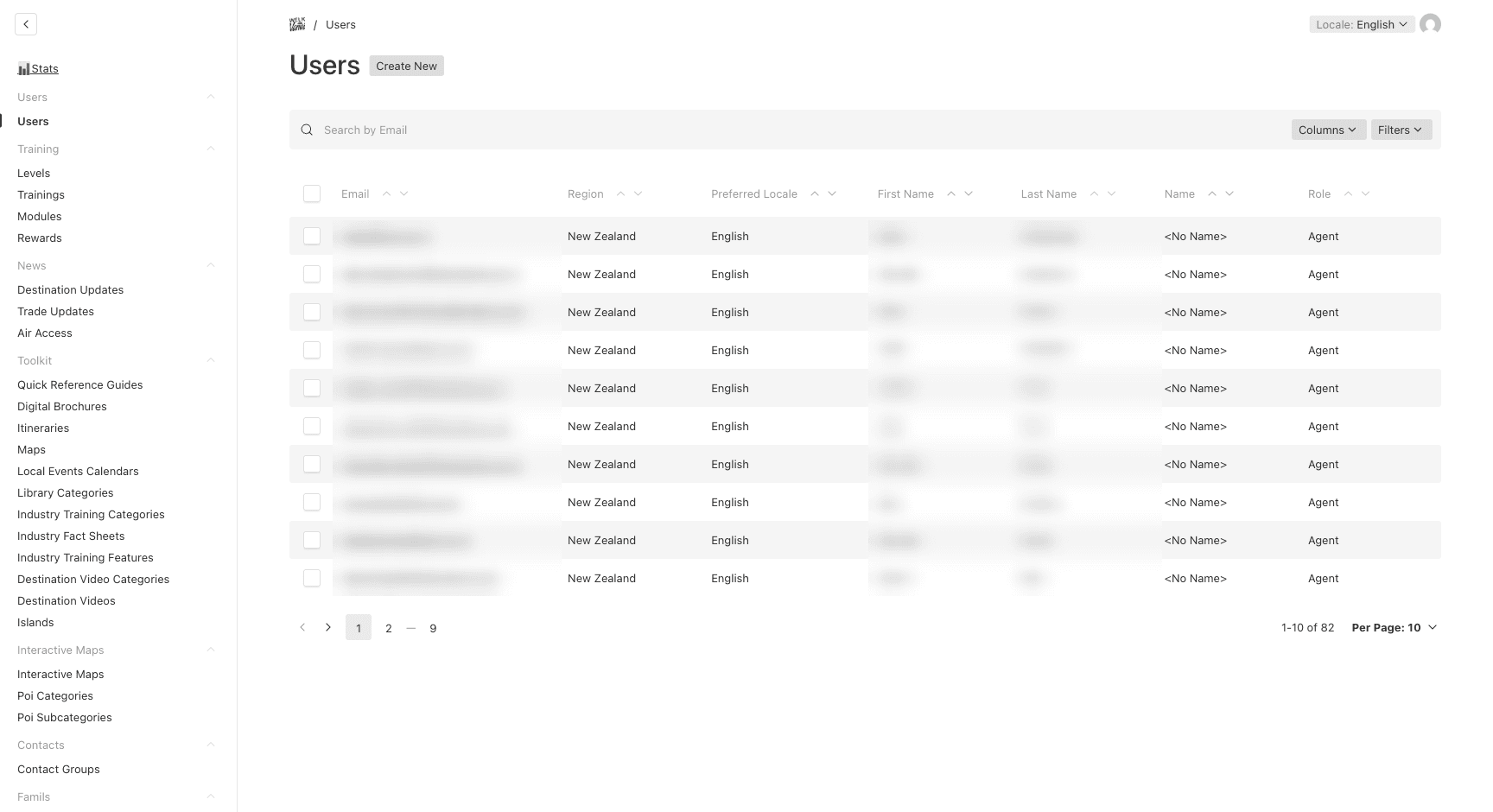
Navigate to Users → Users in the sidebar to see all users. The list displays email, name, role, and region.
Creating a User
- Click Create New in the Users section
- Select the Role first — this determines which fields are required:
Admin / Manager Fields
| Field | Description | Required |
|---|---|---|
| Login email address | Yes | |
| Password | Account password | Yes |
| Role | admin or manager | Yes |
| Name | Full name | Yes |
| Region | Assigned region (required for managers) | Managers only |
Agent Fields
| Field | Description | Required |
|---|---|---|
| Login email address | Yes | |
| Password | Account password | Yes |
| Role | agent | Yes |
| First Name | Agent’s first name | Yes |
| Last Name | Agent’s last name | Yes |
| Region | Geographic region | Yes |
| Occupation | Job title | Yes |
| Company Name | Travel agency or company | Yes |
| Phone Number | Contact phone | Yes |
| Country of Residence | Agent’s country | Yes |
| Self-Famils Access | Grant access to Self-Famils programs | No |
- Click Save
Automatic Actions on User Creation
When a new user is created:
- Preferred locale is automatically detected from the assigned region (e.g., agents in “Europe” get
fr, agents in “Australia” geten) - A welcome email is sent to the user’s email address using a Mailchimp template (in the detected locale)
Editing a User
Click on any user in the list to open the edit form. You can modify all fields except the role change restrictions:
- Admins can edit all users
- Managers can edit agents in their region only, and cannot promote users to admin
- Agents cannot access the admin panel
Manager Restrictions
If you are logged in as a Manager:
- You will only see agents in your region
- You cannot create or edit admin or manager accounts
- The user list is automatically filtered to your region
Last updated on