Monitoring Progress
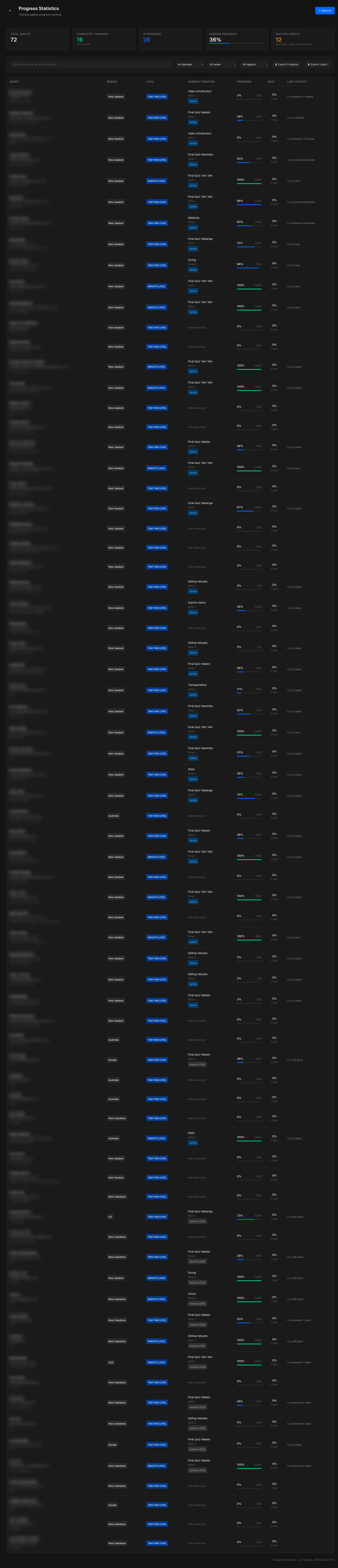
The Progress Statistics dashboard is your primary tool for tracking agent training progress.
Accessing the Dashboard
Click the Stats link in the admin sidebar to open the Progress Statistics page.
KPI Cards
At the top of the dashboard, you’ll see key performance indicators:
| KPI | Description |
|---|---|
| Total Agents | Number of registered agents (filtered by region for managers) |
| Completed Trainings | Agents who have completed all training (count and percentage) |
| In Progress | Agents currently working through training content |
| Average Progress | Overall average completion percentage with a progress bar |
| Inactive Agents | Agents with no activity in the last 7 days |
Filtering Agents
Use the filters above the table to narrow down results:
| Filter | Options |
|---|---|
| Search | Search by email, name, or company name |
| Status | All, Not Started, In Progress, Completed, Inactive |
| Level | All levels or a specific level |
| Region | All regions or a specific region (admin only — managers see their region) |
Agent Table
The main table displays detailed information for each agent:
| Column | Details |
|---|---|
| Agent | Name, email address, and company name |
| Region | Agent’s assigned region |
| Level | Current training level |
| Current Position | Current module, slide, and activity status |
| Progress | Completion percentage with progress bar and slide count |
| Quiz | Average quiz score and total quizzes taken |
| Last Activity | Relative time since last activity (e.g., “2 days ago”) |
Exporting Data
Two export options are available:
Export Progress Stats (CSV)
Exports training progress data including:
- Agent details (email, name, region)
- Current level and progress percentage
- Quiz scores
- Current position and last activity
Export Users Info (CSV)
Exports user registration data including:
- First name, last name, email
- Phone number, company, country
- Region, occupation, preferred language
- Registration date
Click the export buttons at the top of the dashboard to download CSV files.
Auto-Refresh
The dashboard automatically refreshes data every 30 seconds. You can also click the Refresh button for an immediate update. The last update timestamp is displayed.
Manager View
If you are logged in as a Manager, the dashboard automatically filters to show only agents in your assigned region. The region filter dropdown is not available — it’s pre-set to your region.