Media Library
The Media section stores all images and PDF files used across the platform.
Uploading Media
- Navigate to Media → Media
- Click Create New
- Upload a file (image or PDF)
- Fill in:
| Field | Description | Required |
|---|---|---|
| Alt Text | Alternative text for accessibility | Yes |
| Public | Make this file publicly accessible via a direct URL | No |
| Tags | Tags for organization | No |
- Click Save
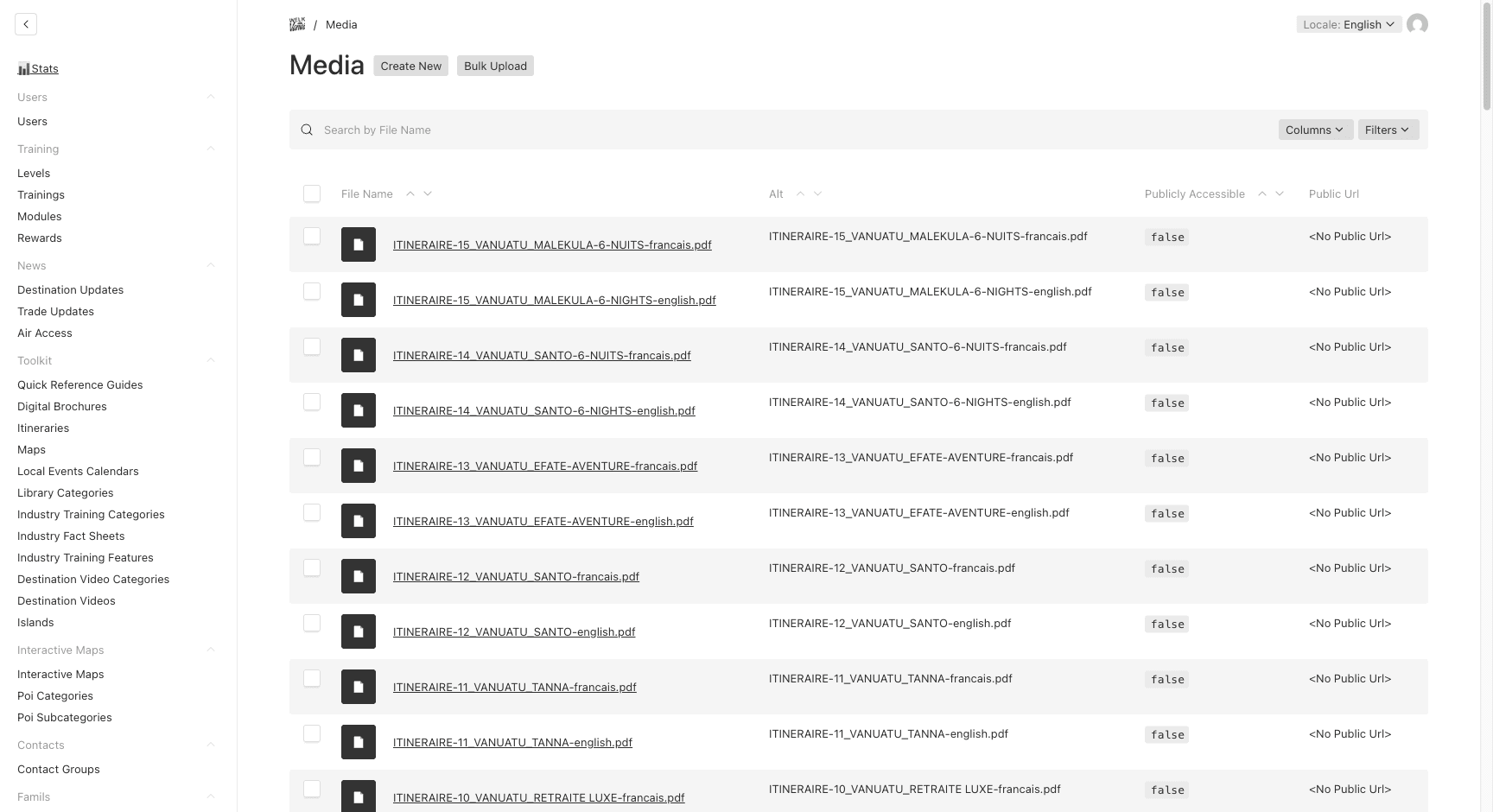
Supported File Types
- Images: All image formats (JPEG, PNG, GIF, WebP, SVG, etc.)
- PDFs: PDF documents (thumbnails are automatically generated)
Image Sizes
When you upload an image, two optimized versions are automatically created:
| Size | Dimensions | Purpose |
|---|---|---|
| Thumbnail | 400 x 300 (center crop) | Admin list views, small previews |
| Display | 1920 x 1080 (fit inside) | Full-size display on frontend |
PDF Thumbnails
When you upload a PDF, a thumbnail is automatically generated in the background. This thumbnail is used as a preview image in lists and cards across the platform.
If thumbnail generation fails, a default image is displayed instead. No action needed from your side.
Public URLs
Check the Public checkbox to generate a shareable, direct URL for a media file. This is useful for:
- Sharing media externally
- Using images in email templates
- Embedding in third-party platforms
Tags
Use tags to organize your media library:
- Navigate to Media → Tags
- Create tags with a name and optional color
- Assign tags to media items when uploading or editing
The color picker provides preset options for visual organization.
File Size Limits
The maximum file size is 4.5 MB. Uploads larger than this may fail. For large files:
- Compress images before uploading
- Use lightweight formats (WebP for photos, SVG for icons)
- Reduce PDF quality if necessary
Last updated on