Navigating Lists
Every section in the admin panel (Users, Trainings, Modules, News, etc.) uses the same list layout. Once you understand how it works, you can navigate any part of the platform.
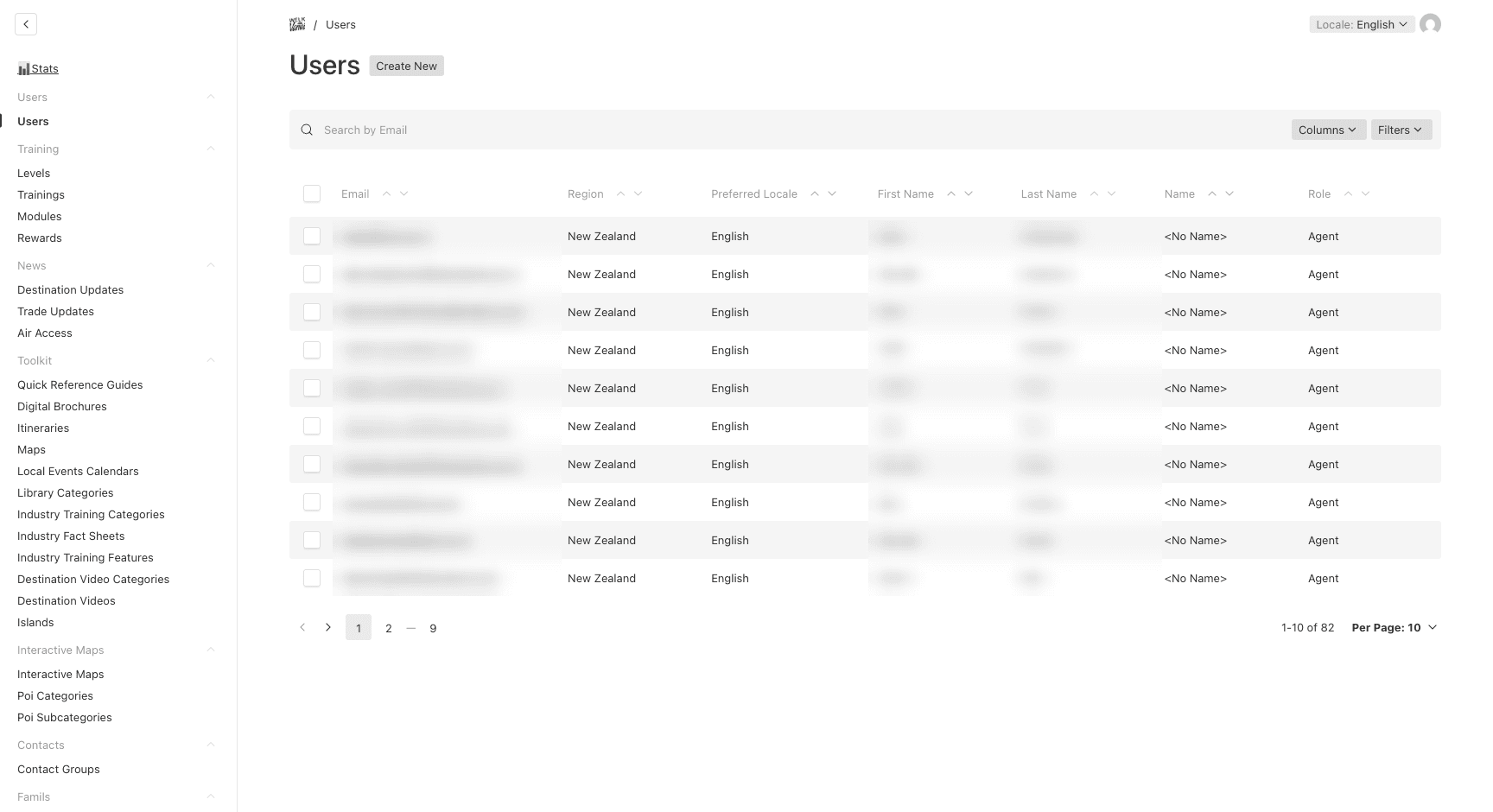
Search
The search bar at the top of every list lets you quickly find an item by name, title, or email (depending on the section).
Simply type a few characters and the list will filter in real time.
Columns
By default, each list shows the most useful columns for that section. You can customize which columns are visible:
- Click the Columns button (top-right of the list)
- Check or uncheck the fields you want to display
- The list updates immediately
This is useful when you need to see specific information — for example, showing the “Region” column in the Users list to quickly identify where agents are located.
Your column preferences are saved in your browser — they will persist when you come back later.
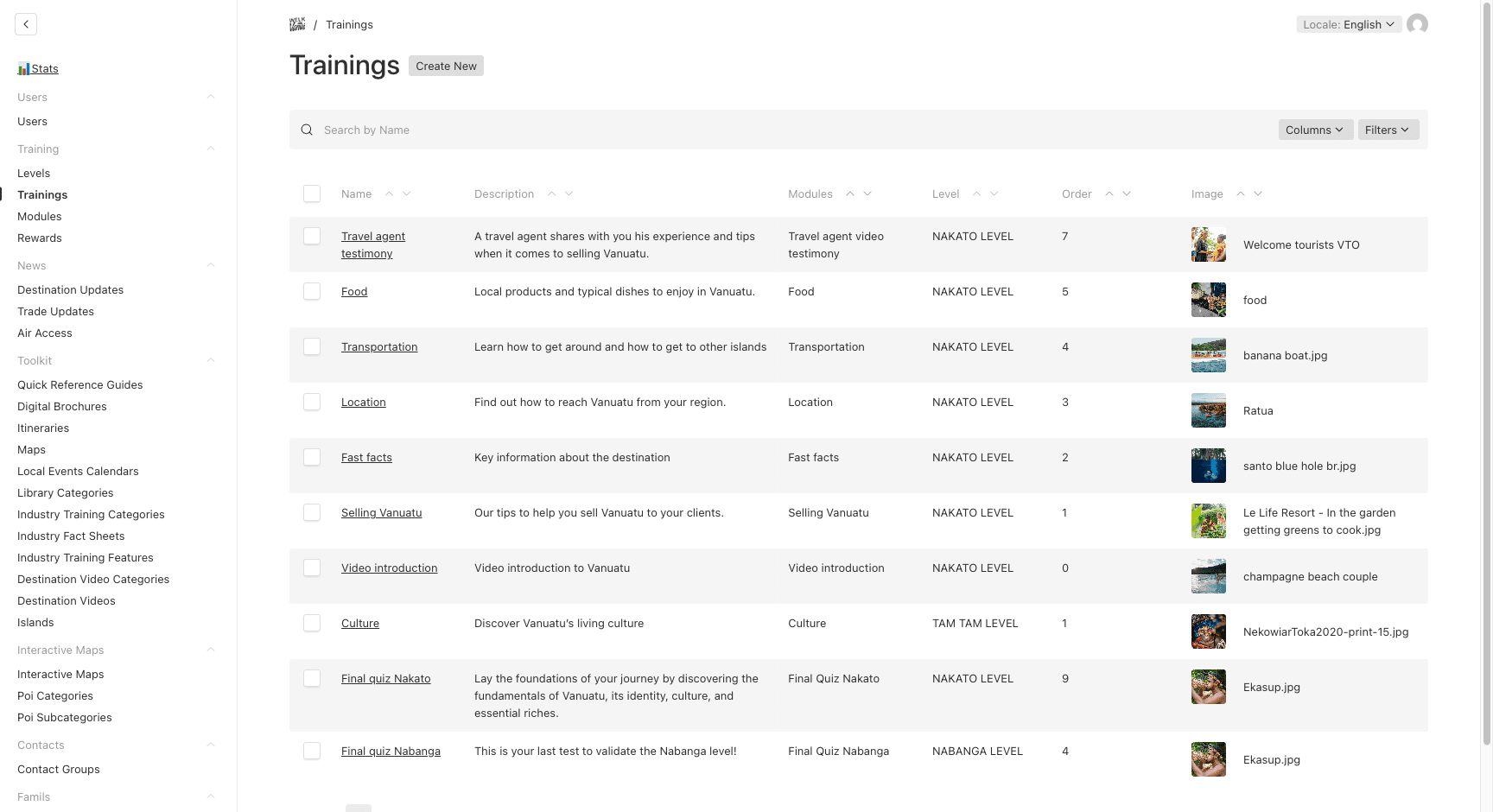
Filters
Filters let you narrow down the list to show only items matching specific criteria.
- Click the Filters button (top-right, next to Columns)
- Choose a field to filter on (e.g., “Role”, “Region”, “Level”)
- Select the condition (equals, contains, is not empty, etc.)
- Set the value you’re looking for
- Click Apply — the list updates to show only matching items
You can add multiple filters to combine criteria. For example:
- Role equals “Agent” AND Region equals “Australia”
This is particularly useful for:
- Finding all agents in a specific region
- Viewing only published news articles
- Listing trainings for a specific level
To remove a filter, click the X next to it, or click Clear all to reset the list.
Sorting
Click any column header to sort the list by that column:
- First click → sort ascending (A → Z, oldest first)
- Second click → sort descending (Z → A, newest first)
The small arrows (↑↓) next to the column name indicate the current sort direction.
Pagination
When a section has many items, the list is split into pages. At the bottom of the list, you can see:
- Page navigation — Click page numbers or arrows to move between pages
- Total count — Shows how many items match (e.g., “1–10 of 16”)
- Per Page — Change how many items are displayed per page (10, 25, 50, or 100)
Selecting Items
Use the checkboxes on the left side of each row to select one or more items. Once selected, bulk actions become available (such as deleting multiple items at once).
To select all visible items, click the checkbox in the column header.